
One of the neat features built into PAI is voice feedback. Your assistant can talk to you. It announces what phase it’s in, tells you when something finishes, and lets you know when it needs your attention.
The way PAI ships this out of the box is through a built-in voice server that uses ElevenLabs for text-to-speech. It sounds great. But it’s designed for a setup where PAI is running locally on your Mac, and that’s not how I run mine.
How PAI’s Built-In Voice Works
PAI’s voice server uses macOS afplay to play audio and osascript for desktop notifications. If you’re sitting at the Mac where PAI is running, it works well. But if your assistant lives in a VM on another machine, like mine does, there’s nobody sitting at that machine to hear it.
My whole setup is built around keeping my AI assistant in a Linux VM and connecting to it from whatever computer I happen to be on. I don’t love opening ports on my daily drivers, so I wanted everything flowing in the pull direction. The assistant pushes nothing to my machines. My machines subscribe to what they want.
That meant I needed voice to work the same way: generated on the assistant’s side, streamed to wherever I’m listening.
Finding the Right Voice
My first approach was to modify the built-in voice server. I kept the same architecture but added a way to stream audio over WebSocket to a browser on another machine. For the actual speech generation, I started with ElevenLabs since that’s what PAI uses natively.
The ElevenLabs voices are awesome and there are so many to choose from. I loved the way they sounded. But PAI is chatty. It announces every phase of the Algorithm, every task completion, every time it needs your input. And I wanted it to be chatty. I burned through eighty dollars in API credits in the first month, though, and that was a little more than I wanted to spend on hearing “entering the observe phase” five hundred times.
I wanted to let it talk as much as it wanted, so I went looking for something I could run locally.
Kokoro TTS
Kokoro is an 82-million parameter open-source text-to-speech model. What I love about it:
- It works on CPU. No GPU required. It runs anywhere Docker runs.
- It’s fast. Generates a typical notification in 1 to 3 seconds on CPU.
- It’s tiny. 82 million parameters. The model weights are about 330MB.
- Lots of voices. Dozens of options across multiple accents and languages.
Kokoro has over 7.6 million monthly downloads on HuggingFace and is the top-ranked open-source model on the TTS Arena leaderboard. For a model you can run on a basic VM with no GPU, it punches way above its weight.
How It Works
The architecture is simple. Two Docker containers and a browser tab.
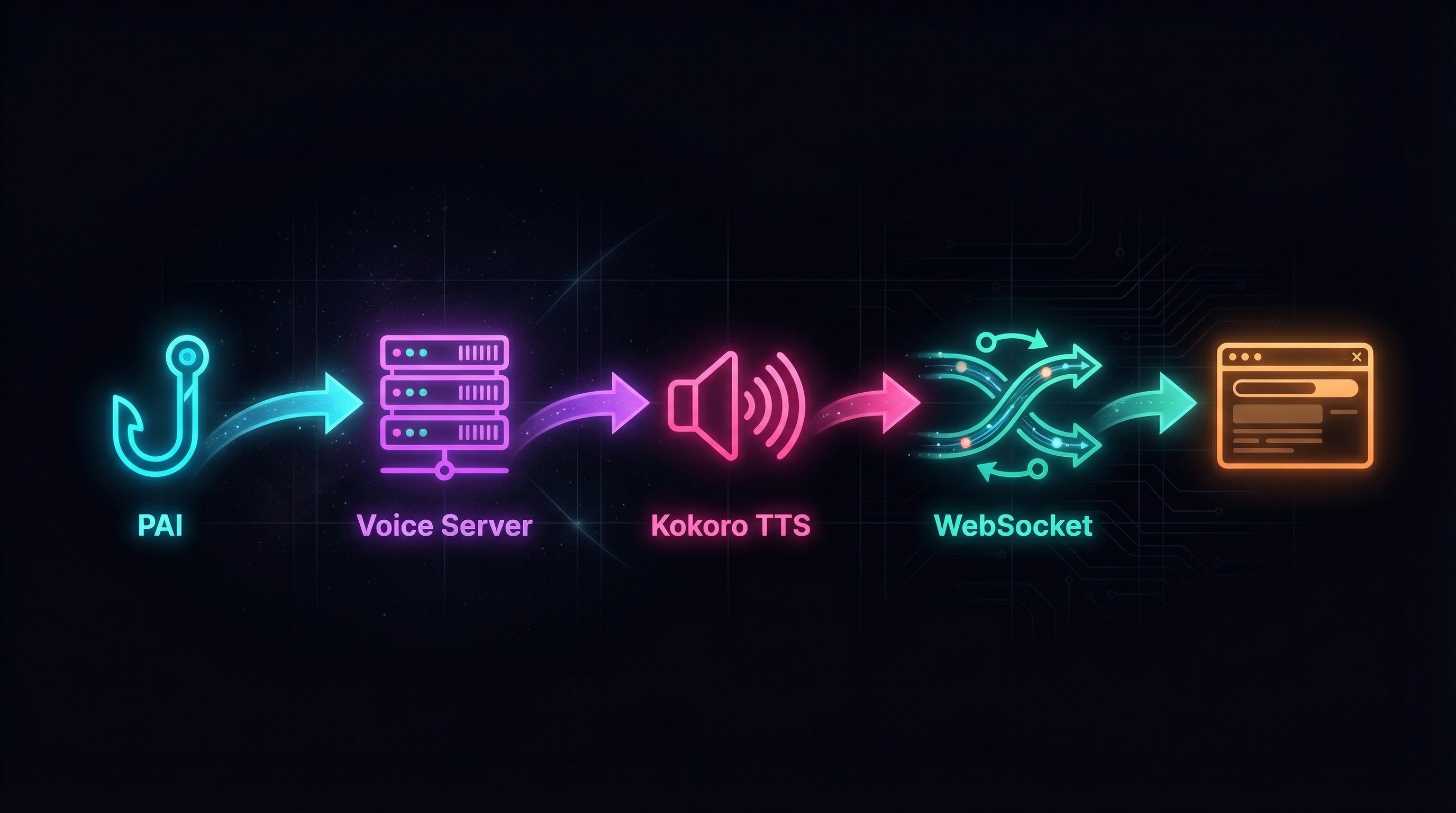
- PAI’s existing hooks fire a POST request to
/notifywith a message. This is the same API endpoint the built-in voice server uses, so nothing in PAI needs to change. - The voice server sends the text to a Kokoro sidecar container.
- Kokoro generates speech and returns audio.
- The voice server broadcasts the audio over WebSocket to every connected client.
- Your browser (or any WebSocket client) plays it.
The voice server itself is about 370 lines of TypeScript running on Bun. The Kokoro sidecar is about 180 lines of Python. Both run in Docker on the same network as the portal server from PAI Companion .
A Drop-In Replacement
I packaged it all up as an optional voice module for PAI Companion , the same repo I use to add a portal, file exchange, and design system to PAI. If you’re not familiar with PAI Companion, I wrote about it in an earlier post .
For getting it connected, I didn’t want to fork PAI’s hooks or rewrite any of the integration code. I wanted to leave PAI as is. So though I started from scratch, I wanted it to be a drop-in replacement for the built-in voice server:
- Same URL:
localhost:8888 - Same API:
POST /notifywith{ message, title, voice_enabled, voice_name } - All existing PAI hooks work without any modification
The only difference is what happens behind that endpoint (within the assistant VM). Instead of calling ElevenLabs and playing audio through macOS speakers, it generates speech locally on the assistant’s VM and streams it to wherever you’re listening.
What You Hear
Here’s what it sounds like in practice. When your assistant starts a new phase of the Algorithm, you hear something like:
“Entering the observe phase.”
When a task completes:
“Portal report created at your-vm-ip port 8080.”
When something needs your attention:
“Waiting for your input on the deployment plan.”
This is all stuff PAI is already saying. It’s functional. You leave a browser tab open, go make coffee, and your assistant tells you when it’s done or when it needs you. That’s the whole point. You can now hear it, even when PAI is running on a completely different machine.
Choosing a Voice
Kokoro comes with dozens of voices. The voice module includes a preview page where you can listen to each one and pick the one you like. Right now I’m using af_heart, but there are plenty of options across accents and languages and I hop around sometimes. You can even have your assistant pick a voice for you.
Listening
The voice module gives you two ways to listen, depending on your setup:
Standalone player. If you just want voice without the rest of PAI Companion, this is a simple HTML page you open in any browser. It connects to the voice server, shows connection status, and plays notifications as they come in. Dark theme, centered layout, volume control.
Portal widget. If you’re already running the PAI Companion portal, a small floating box sits in the bottom-right corner of every portal page. It runs in the background, so you get voice without opening another tab. Mute toggle included.
Both auto-reconnect if the connection drops, and both remember your volume setting.
Setting It Up
If you already have PAI Companion set up, pull the latest:
cd ~/pai-companion && git pull
If you’re starting fresh, clone the repo and set up the core companion first. There’s a walkthrough in the PAI Companion post .
Once you have the repo up to date, open Claude Code and tell your assistant:
Read ~/pai-companion/voice/INSTALL.md and follow the setup phases.
Your assistant handles the rest. It will build the Kokoro base image (this downloads model weights from HuggingFace and may take about 10 minutes the first time), start the Docker containers, set up the web client, and configure upgrade protection so PAI updates don’t overwrite your voice server.
A note on resources: The build temporarily needs about 15GB of free disk space (it settles to around 5GB afterward). Plan for 30GB+ total on your VM, and at least 8GB of RAM. 16GB is more comfortable if you’re running other things alongside your assistant.
Full details are in the README .
What’s Next
I also built a macOS menu bar client in Swift that connects over WebSocket and lives in the system tray. If anyone wants that code, I can add it to the repo as an optional extra. For the purposes of sharing, the browser-based approach covers most setups without requiring a native app.
I’m not even sure this is the best architecture for this. If you’ve found a different way to get voice out of a remote or VM-based assistant setup, I’d love to hear about it. Reach out on LinkedIn or open an issue on the repo.
If you’re running PAI, or especially PAI Companion, and want your system to talk to you, the voice module is ready to try .