
I used Obsidian for years and loved it. Still do. It’s a great app, and if you’re using it, I’m not here to talk you out of it. But something shifted for me over the past few months as I started doing more and more of my work through my AI assistant. I found myself spending less time in Obsidian’s UI and more time just working with documents directly through Claude Code. The notes were still there, but I was reaching for them less because I was already in the terminal.
About a month ago I decided to try something. After backing up my Obsidian directories, I asked my assistant to ingest everything into a structured knowledge base it could search and maintain. I figured if it didn’t work out, I could always go back. So far I haven’t looked back.
I’m not declaring Obsidian or local markdown apps over for me. I might go back. But for the moment, I’m enjoying having my assistant as the primary interface to my notes, with a few layers underneath to make sure I’m not locked in.
What It Is
This isn’t a replacement for Claude Code’s built-in memory or PAI’s memory system. Those are getting better over time, and they serve a different purpose. Claude Code’s memory captures patterns and preferences automatically. This is something more intentional. A persistent knowledge store that I control directly, that survives across Claude Code sessions and PAI upgrades, and that I can add to, search, and browse whenever I need to.
Think of it as a personal reference library. The assistant helps you store things, find things, and use what’s there. But the files are just markdown in folders on your system. If the assistant isn’t available, you still have the files.
How It Works
The Knowledge skill gives your Claude Code assistant three workflows: learn, recall, and browse.
Learn is how information gets in. When I come across something I want stored, I just say “remember this” or “save this” and describe what I want. The assistant creates a structured markdown entry, files it under a category, and updates an index. No database, no proprietary format. Plain text, organized by topic.
For example, I might say “remember that my Bambu Lab A1 uses a 0.4mm nozzle and I usually print PLA at 220 degrees.” That becomes an entry under tech with a title, tags, and the full details. Next time 3D printing comes up, the assistant already has my setup.
Recall is how information comes back. When I ask “what do I know about my printer settings” or “how do I connect to the office VPN,” the assistant searches the index first by title and tags, without reading every file. If it finds matches, it loads the specific entries and gives me the answer. Index-first search keeps it fast even as the knowledge base grows.
Browse gives me an overview. I can say “show my knowledge base” and see everything organized by category, or drill into a specific area. Useful for seeing what’s accumulated and whether anything needs updating.
A Few Ways I Use It
Technical reference. Configuration details for servers, network equipment, and services. When I need to remember which port something runs on or what the correct mount path is, the assistant looks it up instead of me digging through config files. Especially helpful for things I set up months ago and don’t touch often enough to keep the details in my head.
Project context. When I’m working on something over multiple sessions, I’ll have the assistant save key decisions and the reasoning behind them. “Remember that we chose Hono over Express for this worker because of the Cloudflare bindings support.” Two weeks later when I’m back in that project, the context is there without me having to re-explain the whole history.
Personal information. Preferences, dimensions for home projects, product model numbers. The assistant knowing that my office desk is 60 inches wide and my monitor arm clamp maxes out at 2.5 inches thick has been useful more than once. It’s the kind of information that doesn’t fit neatly into any other system.
Work patterns. Procedural knowledge. How I like security reports formatted. The steps for a specific compliance workflow. The assistant can reference these patterns and apply them without me repeating myself. I wrote more about this kind of thing in Build or Buy May Have Changed , where the bigger idea is that your assistant can take a reference like this and build something tuned to how you actually think and work.
Multiple Ways In
One thing I wanted to get right was making sure I’m not dependent on any single interface to reach my notes. Right now I have a few paths to the same data:
The assistant itself is the primary interface. The skill handles ongoing capture, search, and retrieval through conversation. That’s how I interact with it most of the time.
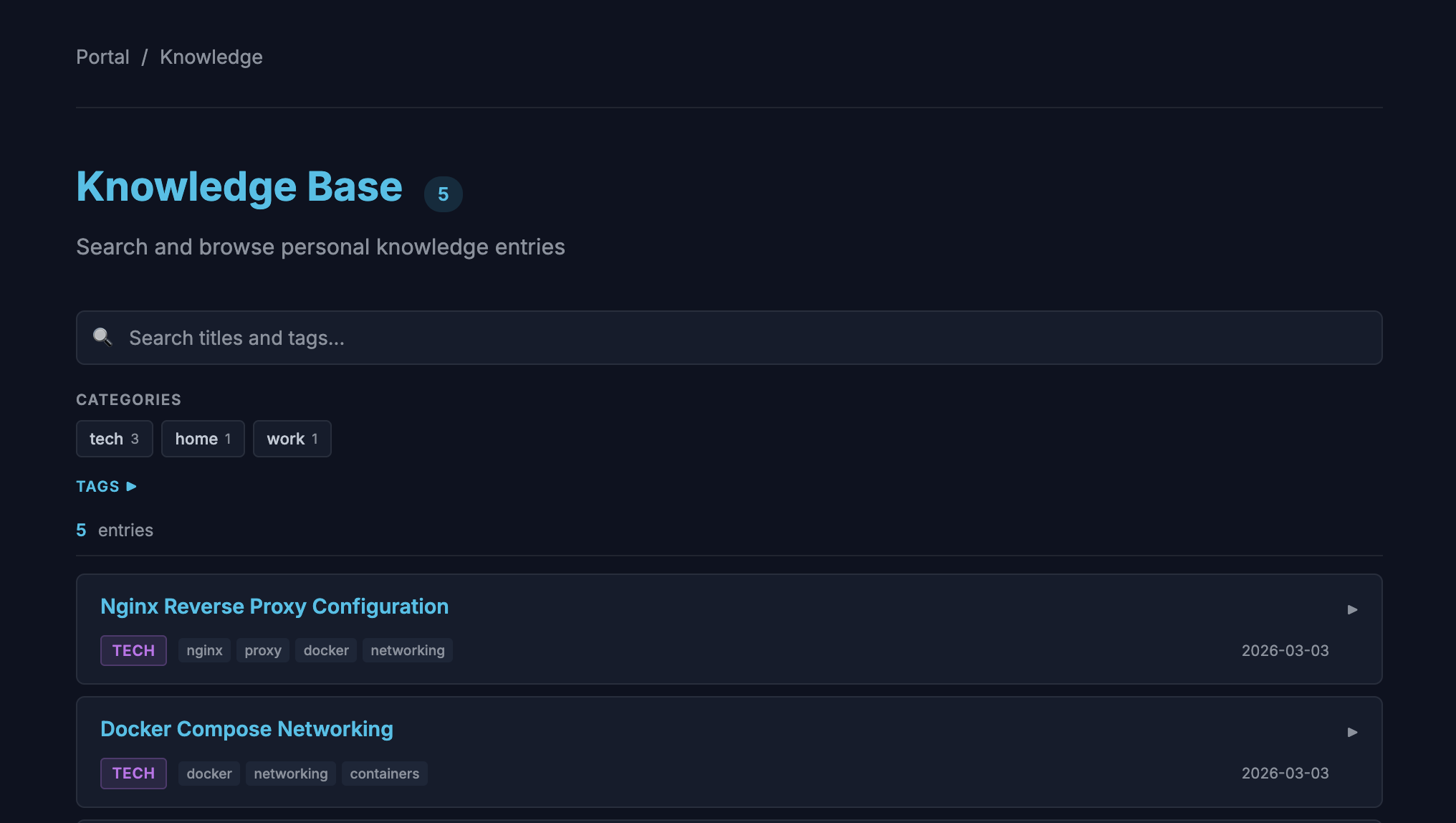
There’s also a web UI for browsing and searching entries visually. It’s optional and not required for the skill to work. If you already have PAI Companion running, the UI drops right into your existing portal. Otherwise it can run standalone in Docker.
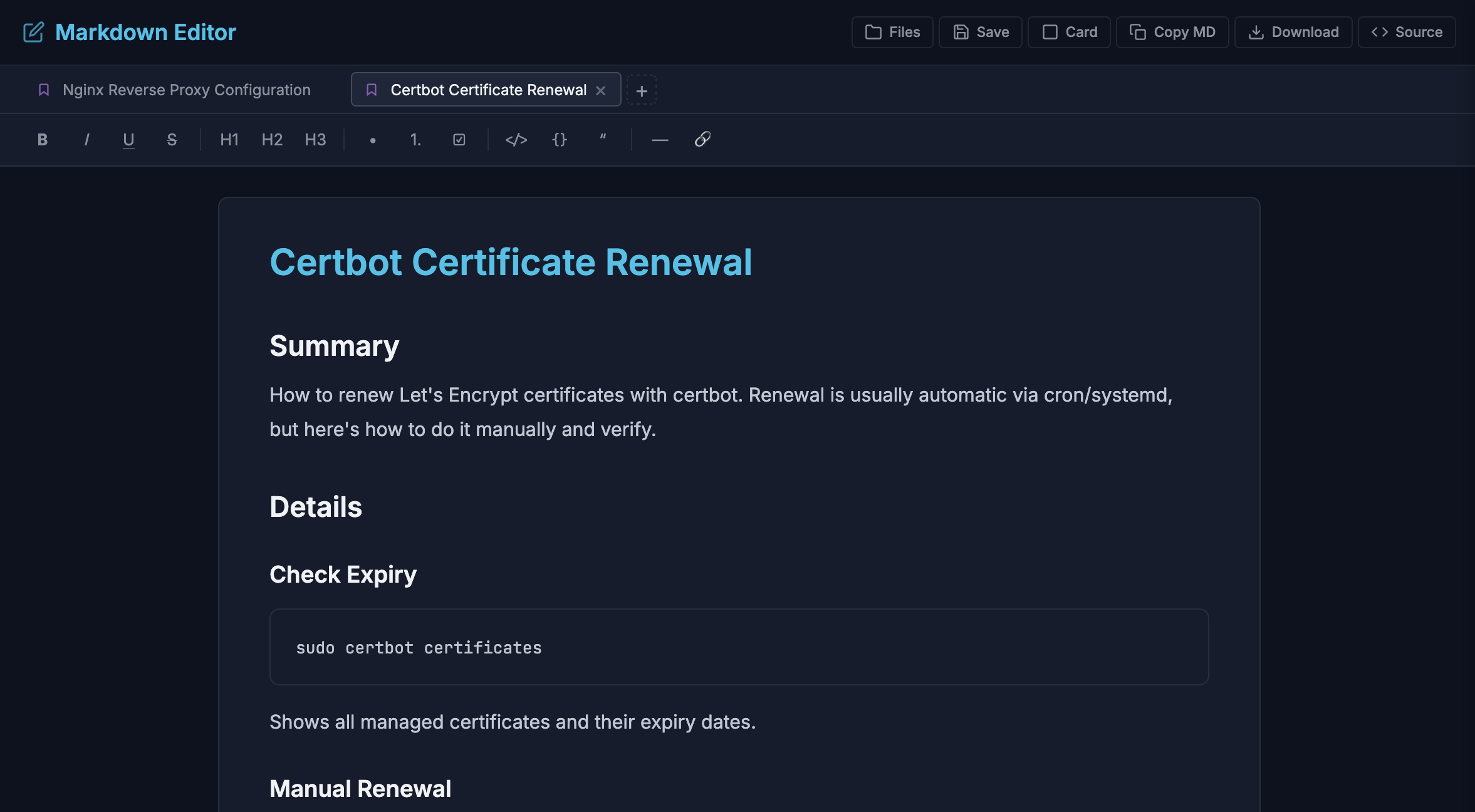
I also built a markdown editor that runs in the browser. It’s the closest I’ve come to the markdown editing experience I’ve always wanted, and it’s included in the repo in an early form. Handy for cleaning up or expanding entries when you’d rather just edit directly.
And if none of those are available, if the UI service is down or Claude is having an outage, the files are still just markdown on the file system. You can open them in any editor. That was intentional.
A Note on Backups
Moving my notes into this system means my knowledge base now lives inside my Claude Code and PAI environment. That’s a different risk profile than files synced through iCloud or sitting in a local Obsidian vault. It’s worth thinking about. The data is still just files on disk, so any backup strategy that covers that directory works. But it does need to be part of the plan.
Try It
The Knowledge skill works with Claude Code , PAI , and PAI Companion .
Head over to the repo for the Knowledge skill.
If you’re using PAI (here’s my setup ), the quick install is:
cd ~ && git clone https://github.com/chriscantey/skill-knowledge.git
Then tell your assistant:
Read ~/skill-knowledge/INSTALL.md and follow its instructions.
It’ll walk you through setup, ask if you want the web UI, and handle everything from there. Manual install instructions are in the repo if you’d rather do it yourself.
It’s a Starting Point
Like the 3D printing skill I shared earlier, this is an export from my system, not a packaged product. It reflects how I think about organizing information, which may not be how you think about it. The categories I use (tech, home, health, finance, work) are just defaults. Your assistant can create new ones as needed.
The more interesting thing is that your assistant can take this as a reference and build something better. Maybe you want different categories. Maybe you want entries that expire or get flagged for review after a certain period. Maybe you want your knowledge base to integrate with something else entirely. The skill is simple enough that adapting it is straightforward.
I’d love to hear what people do with it. If you build on it and learn something, sharing back is always appreciated.